
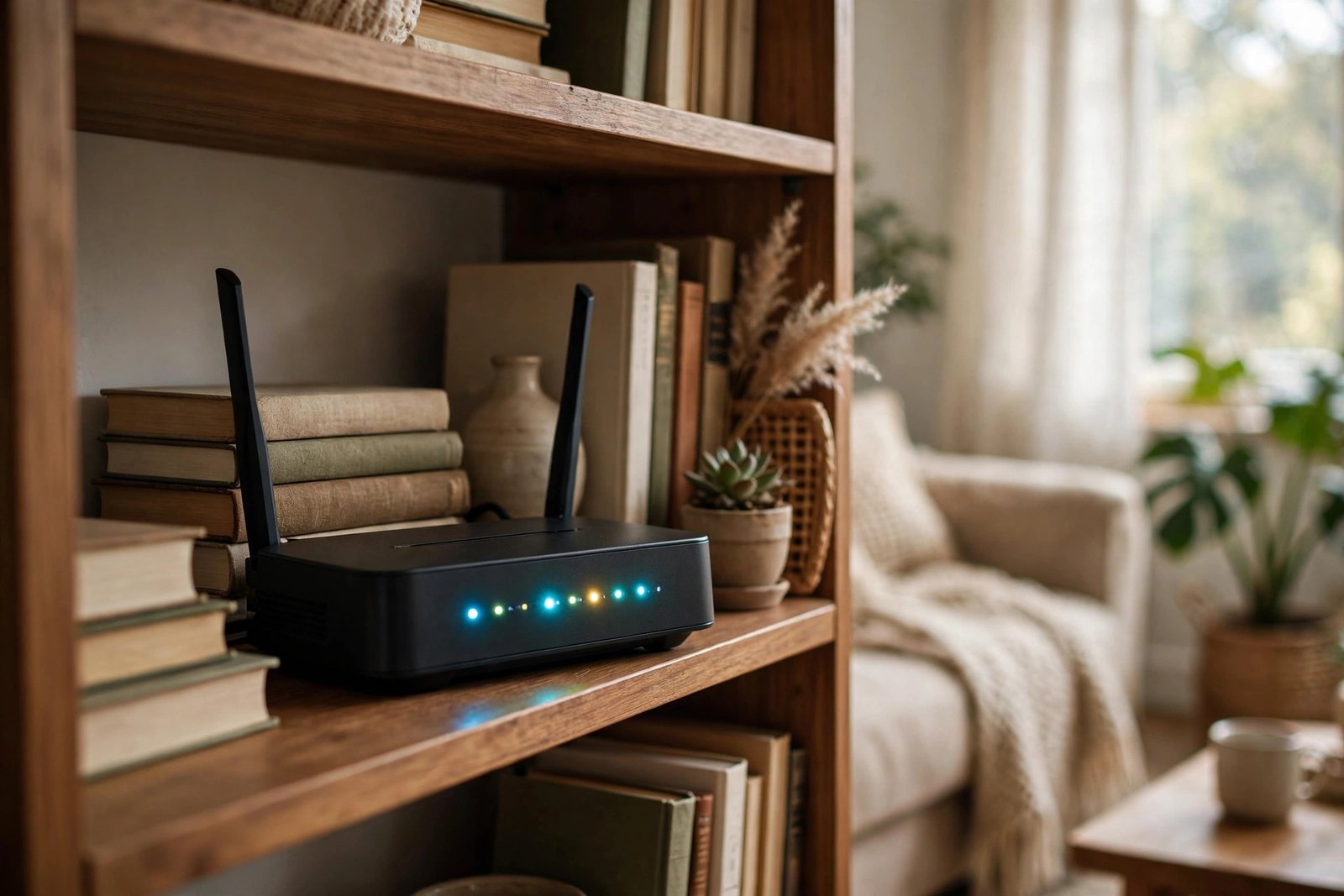
Your WiFi crawls, the video call freezes, and someone in the house says the magic words: “Have you tried restarting the router?” You unplug it, count to thirty, plug it back in — and everything works. For a week. Then it happens again. At some point you have to ask whether the router just needs the occasional reboot or whether it is quietly dying and needs replacing. The answer is not always obvious, because a dying router and a glitchy one can look identical from the couch. Here is how to tell the difference with a few simple tests, so you stop rebooting a lost cause — or replacing a router that was fine.
Start With the Tests That Cost Nothing
Before spending a dollar, run two quick diagnostics. First, test your speed with a wired connection: plug a laptop directly into the router with an Ethernet cable and run a speed test, then run the same test over WiFi standing next to the router. If the wired speed matches what you pay for but WiFi is dramatically slower, the router’s wireless side is the bottleneck — not your internet plan. If both are slow, call your internet provider before blaming the router.
Second, check whether the problem hits every device or just one. If your laptop crawls but your phone flies on the same network, the laptop is the problem. If every device in the house struggles at the same time, the router (or the connection feeding it) is the common factor.
Signs a Simple Restart Will Fix It
Routers are small computers, and like any computer they develop memory leaks and stuck processes over weeks of continuous uptime. The classic signs of a merely glitchy router: everything works fine for days or weeks after a reboot, then gradually degrades; one device refuses to connect until the router restarts; or speeds recover fully immediately after a reboot.
The proper restart matters more than people think. Do not just tap the power button. Unplug the router from the wall, wait a full 60 seconds (this lets the capacitors fully discharge and clears the memory), then plug it back in and give it two to three minutes to fully reconnect before testing. If you find yourself doing this more than once a week, though, you have crossed from “glitchy” into “symptomatic” — keep reading.
Sign 1: Your Router Is More Than Five Years Old
Age is the single most reliable predictor. A router from 2019 or earlier is almost certainly running WiFi 5 (802.11ac) or older, while current devices expect WiFi 6 or 6E. More importantly, manufacturers typically stop releasing firmware security updates after about five years. An unpatched router is not just slow — it is a security liability sitting at the front door of your network.
Check your router’s admin page or the manufacturer’s support site for the latest firmware date. If the newest firmware is more than two years old, the manufacturer has moved on, and so should you. The FCC’s guidance on home networking equipment notes that outdated hardware is one of the most common reasons households do not get the speeds they pay for.
Sign 2: It Runs Hot, Drops Connections, or Needs Daily Reboots
Hardware failure has a smell — sometimes literally. A router that is hot to the touch, has a constantly screaming fan, or smells of hot plastic is telling you its components are stressed. Frequent dropped connections that a reboot only briefly fixes, devices that randomly cannot see the network, and lights that blink in patterns the manual does not explain are all classic end-of-life symptoms.
Try relocating the router first: heat kills electronics, and routers stuffed behind TVs or inside cabinets cook themselves. Move it somewhere open and ventilated for a week. If the drops continue in the open air, the hardware is failing — no firmware update revives dying capacitors and worn-out radios.
Sign 3: It Cannot Keep Up With Your Household Anymore
Sometimes the router is not broken; it is just outgrown. Count your connected devices — the average American home now has more than 20, from phones and laptops to TVs, doorbells, thermostats, and smart speakers. A budget single-band router from years ago was designed for a handful of devices, and every additional one slices the available bandwidth thinner while forcing the router’s processor to juggle more connections.
The tell: speeds are fine with one device connected but collapse when the household is active in the evening. If that matches your experience, you do not necessarily need the most expensive router — you need a modern dual- or tri-band model with enough capacity for your device count. When shopping, Consumer Reports’ router buying guidance is a solid independent starting point for matching a model to a household size.
Sign 4: Dead Zones Appeared Where Coverage Used to Be Fine
Radio components degrade over time, and a router that once covered the whole house but now leaves the bedroom a dead zone may simply be transmitting weaker than it used to. Before concluding that, rule out the environment: new furniture, a moved bookshelf, or a neighbor’s new router on the same channel can all create the same symptom.
Log into the router and try switching the 2.4 GHz channel to 1, 6, or 11 (the non-overlapping channels) and see if coverage improves. If it does, interference was the culprit, not aging hardware. If nothing changes across channels and bands, and the dead zone keeps growing, the radios are fading — replacement time.
The Decision Framework: Restart, Update, or Replace
Put it together as a simple flowchart. Problem appears rarely and a reboot fixes it for weeks? Keep the router; schedule a monthly reboot (some routers have an auto-reboot scheduler in their settings). Reboot fixes it but the problem returns within days? Update the firmware first, and if that fails, replace. Router is over five years old, runs hot, drops connections daily, or cannot handle your device count? Skip straight to replacement; no amount of rebooting restores worn-out hardware or missing security patches.
When you do replace, you do not need to overbuy. For most households, a current WiFi 6 router from a reputable brand, placed centrally and elevated, outperforms an expensive flagship stuffed in a corner. Spend the savings on proper placement — it matters more than the spec sheet.
A router that works fine for weeks after a reboot just needs occasional restarts; one that needs rebooting every few days, runs hot, drops connections, or stopped getting firmware updates is dying. Test wired versus wireless speeds first so you never replace a router when the internet plan was the problem.
Conclusion
Restarting and replacing solve different problems. A reboot clears the temporary glitches every router develops — memory leaks, stuck connections, overheated states — and a monthly restart is healthy maintenance for any router. But age, heat, daily drops, dead zones that will not go away, and abandoned firmware are hardware problems, and hardware problems only get worse. Run the wired-versus-wireless test, check your firmware date, and be honest about how often you are unplugging that box. If the answer is “constantly,” stop nursing it and upgrade. Browse more technology guides, meet the people behind them, or ask us your home-networking questions anytime.
Frequently Asked Questions
How often should I restart my router?
Once a month is plenty for a healthy router — it clears memory leaks and stuck processes before they cause symptoms. If you need to restart weekly or more often to keep things working, that frequency itself is a sign the router is failing and should be replaced.
Does unplugging for 30 seconds really matter versus a quick power toggle?
Yes. A quick toggle may not fully clear the router’s memory because capacitors hold a residual charge. A full 60-second unplug guarantees a clean boot, which is why technicians always specify the wait.
Will a new router increase my internet speed?
Only if the router was the bottleneck. A new router cannot deliver more speed than your internet plan provides — test with a wired connection first. If wired speeds already match your plan, a new router will not make them faster, though it can fix WiFi-specific problems like dead zones and drops.
Should I rent my ISP’s router or buy my own?
Buying your own usually pays for itself within a year versus typical $10–15 monthly rental fees, and you get better hardware and full control. Just confirm compatibility with your provider — cable ISPs maintain approved modem lists, and fiber providers have their own requirements.
Is it safe to keep using a router that no longer gets firmware updates?
It is risky. Unpatched routers are a known target for botnets and snooping attacks because they sit at the edge of your network with no defenses being updated. If your router’s last firmware is more than two years old, replace it for security reasons even if it still works.
Leave a Reply