
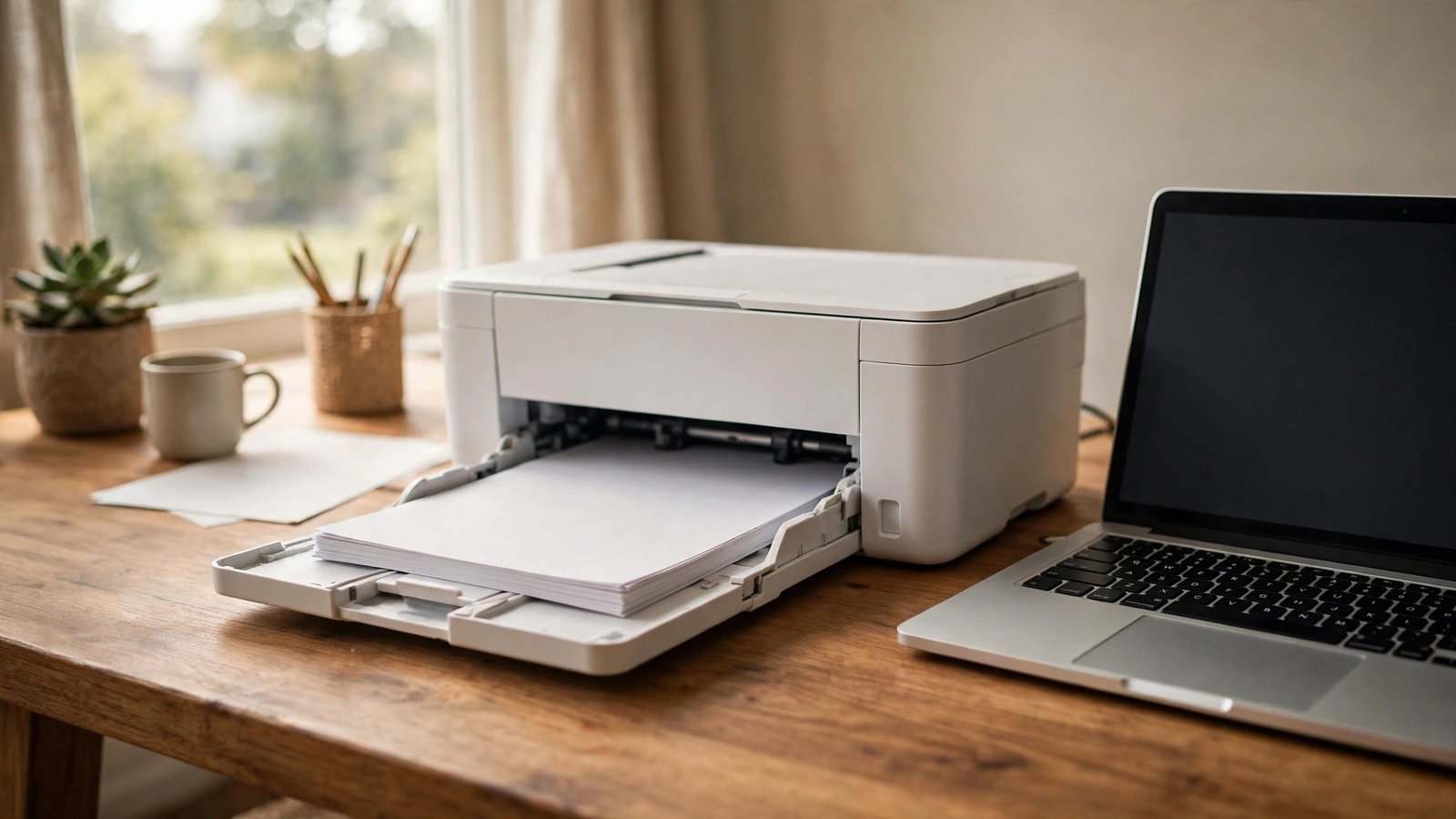
Nothing is more maddening than a printer that worked yesterday, shows full WiFi bars today, and still insists it is “offline” every time you hit Print. The good news: in the large majority of cases, nothing is actually broken. The printer and your computer have simply lost track of each other on the network — a stale IP address, a confused print queue, or a router hiccup is almost always the culprit. Before you reinstall drivers or buy a new printer, work through these fixes in order. They resolve the phantom-offline problem about nine times out of ten.
Why Printers Say Offline When They Are Clearly Connected
Your printer connects to WiFi independently, like a tiny computer with its own network address. Your computer talks to it through that address. The “offline” message usually means the computer cannot reach that address anymore — not that the printer lost WiFi. The most common cause is a changed IP address: routers periodically reassign addresses (DHCP), and if the printer gets a new one while your computer remembers the old one, communication breaks even though both devices are online.
Other usual suspects include a stuck document jamming the print queue (the computer waits on a job that will never finish and reports the printer as offline), the “Use Printer Offline” mode accidentally enabled in Windows, and SNMP status monitoring misfiring — Windows polls the printer for status, gets no answer, and declares it offline. All fixable, all free.
Fix 1: Restart Everything in the Right Order
Do the full power cycle, in sequence. First, cancel all pending print jobs: on Windows, open Settings, Bluetooth and devices, Printers and scanners, click your printer, then “Open print queue” and cancel everything. On a Mac, open System Settings, Printers and Scanners, select the printer, and clear the queue. A single stuck job can hold the whole pipeline hostage.
Then unplug the printer from the wall (not just the power button — a full unplug), wait 60 seconds, and plug it back in. While it boots, restart your router the same way, then restart your computer. Power everything back up in this order: router first, then printer, then computer. This forces fresh IP addresses and clean connections, and it resolves the majority of phantom-offline cases by itself.
Fix 2: Check the “Use Printer Offline” Setting on Windows
This one embarrasses IT professionals. On Windows, a printer can be manually set to offline mode — sometimes by an accidental click, sometimes by Windows itself after a failed print. Open Settings, Bluetooth and devices, Printers and scanners, click your printer, then “Open print queue.” Click the Printer menu at the top: if “Use Printer Offline” has a checkmark next to it, click it to uncheck. The printer should flip to Ready within seconds.
While you are in the queue window, also confirm the correct printer is set as default. Households with an old printer still installed often send jobs to a ghost device while the real one sits ready. Right-click your actual printer in the Printers list and choose “Set as default” to end the confusion permanently.
Fix 3: Give Your Printer a Static IP Address
If the offline problem returns every few weeks, the wandering IP address is almost certainly the cause — and the permanent fix is a static (reserved) IP. Log into your router’s admin page (usually 192.168.1.1 or 192.168.0.1), find the DHCP or LAN settings, and look for “Address Reservation” or “Static DHCP.” Find your printer in the device list and reserve its current IP address so the router never reassigns it.
Then, on your computer, remove the printer and re-add it fresh so it binds to the now-permanent address. On Windows: Settings, Printers and scanners, remove the device, then “Add device.” On a Mac: System Settings, Printers and Scanners, remove with the minus button, then re-add. This ten-minute job ends the recurring-offline cycle for good in most homes.
Fix 4: Update or Reinstall the Printer Driver
Corrupted or outdated drivers cause their own flavor of offline errors, especially after Windows updates. Go to the printer manufacturer’s website — HP, Canon, Epson, Brother — and download the full driver package for your exact model and operating system. Avoid the stripped-down driver Windows installs automatically; the manufacturer’s full package includes the network discovery tools that keep the connection healthy.
For a truly clean slate, uninstall the printer completely first: remove it from Printers and scanners, then open Print Management (search for it in the Start menu), expand “All Drivers,” and delete the driver package. Reboot, then install the fresh download. The Microsoft support guide to printer troubleshooting walks through these steps for stubborn cases.
Fix 5: Check the Printer’s Own Network Settings
Sometimes the printer really is the problem — just not in the way you think. Print the printer’s network configuration page (usually under Settings, Network, or by holding the WiFi button — check your manual). Confirm it shows the same network name as your computer: printers love silently connecting to a guest network or a 5 GHz band while the computer sits on the main 2.4 GHz network, and devices on different networks often cannot see each other.
Also check signal strength on that page. A printer wedged behind a metal filing cabinet or in a far corner may show one bar — enough to claim “connected” but not enough for reliable printing. Moving it a few feet, or switching it to the 2.4 GHz band (which travels farther through walls than 5 GHz), often fixes intermittent offline episodes that only happen at certain times of day.
When It Is Actually a Hardware Problem
A small minority of offline cases are genuinely hardware. If the printer’s WiFi light blinks endlessly and never goes solid, if it cannot see any networks at all while your phone sees five, or if it drops off the network within minutes of every reboot despite a strong signal, the wireless card inside the printer may be failing. Before concluding that, try a USB cable connection — if USB printing works flawlessly, the printer itself is fine and only its WiFi radio is suspect.
For a printer with a dead WiFi radio, a $15 USB print server or a powerline Ethernet adapter can give it a wired connection cheaper than a repair. And if the printer is more than six or seven years old with multiple failing parts, put the repair money toward a replacement instead — modern printers reconnect to networks far more reliably than their predecessors.
A printer that says offline while connected to WiFi has almost always just lost track of its network address. Clear the print queue, power-cycle router then printer then computer, uncheck “Use Printer Offline,” and assign the printer a static IP to stop the problem from coming back.
Conclusion
The phantom-offline printer is one of tech’s most common and most fixable annoyances. Work the list in order: clear stuck jobs, do a proper power cycle in the right sequence, check the offline-mode setting, give the printer a reserved IP address, and refresh the driver from the manufacturer’s site. One of those steps fixes it nearly every time — and the static IP reservation keeps it fixed. For more no-nonsense fixes, browse our technology guides, meet the team, or tell us about the tech problem driving you crazy this week.
Frequently Asked Questions
Why does my printer keep going offline every few days?
Almost always a changing IP address. Your router periodically reassigns the printer’s network address, and your computer keeps trying the old one. Reserving a static IP for the printer in your router’s settings is the permanent fix.
Should I connect my printer with USB instead of WiFi?
If the printer sits next to the computer, USB is genuinely more reliable — no network issues, ever. But USB only serves one computer, so WiFi remains the right choice for households where phones, tablets, and multiple computers all print.
Does “Use Printer Offline” turn itself on?
It can. Windows sometimes enables it after a failed print job or a driver hiccup, and an accidental click in the print queue menu does it too. It is always worth checking before deeper troubleshooting.
My printer shows offline but my phone can print to it. Why?
That proves the printer’s WiFi is fine — the problem is specifically between your computer and the printer. Focus on the computer side: clear its print queue, check the offline-mode setting, and reinstall the driver. The phone printing fine is actually great diagnostic news.
Will resetting the printer to factory defaults help?
It can clear corrupted network settings as a last resort, but you will have to set up WiFi from scratch afterward. Try the static IP fix and driver reinstall first — factory resets are rarely necessary for offline issues.
Leave a Reply