
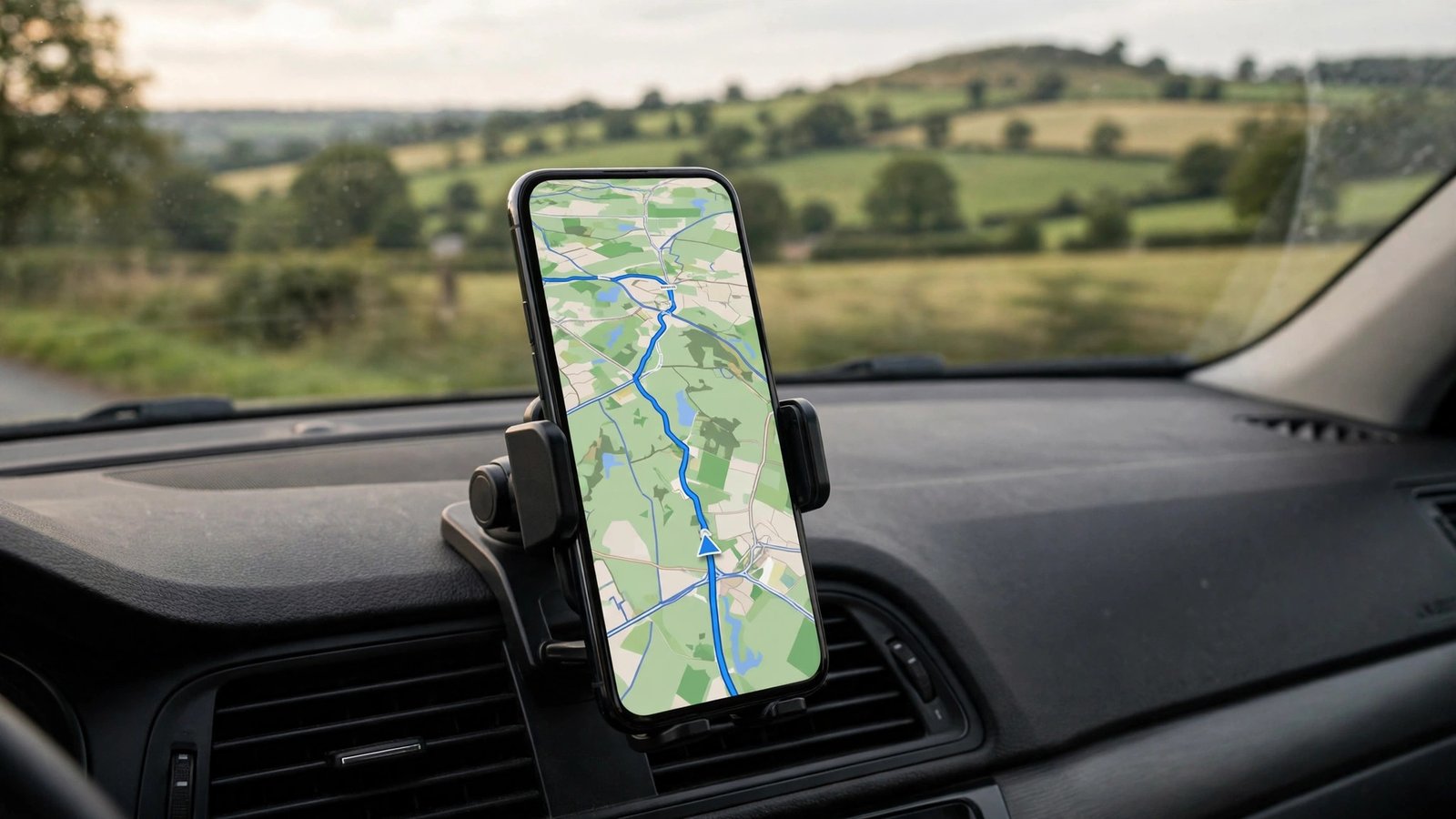
International roaming charges are the fastest way to turn a vacation into a billing horror story — $15 per megabyte adds up with terrifying speed. But your phone’s GPS does not actually need your cellular data plan. GPS positioning comes from satellites, not cell towers, and with the right preparation, your phone becomes a fully functional offline navigator that uses zero roaming data. Whether you are driving through rural Mexico, hiking in the Alps, or navigating Tokyo’s streets, offline GPS is reliable, free, and easy to set up. You just have to do it before you leave Wi-Fi.
Why GPS Works Without Data (the Key Insight)
Here is the technical fact that makes everything possible: your phone determines its location by listening to GPS satellites orbiting overhead — a completely passive, free signal that works anywhere on Earth with a view of the sky. No cell towers, no Wi-Fi, no data plan required. What cellular data normally provides is the map itself — the streets, labels, and routing downloaded on the fly. Solve the map problem by downloading maps in advance over Wi-Fi, and the satellite positioning does the rest. Your phone in airplane mode with Wi-Fi and Bluetooth off can still navigate perfectly with pre-downloaded maps. This is not a hack; it is how the system was designed. Dedicated hiking GPS units have worked exactly this way for decades.
Google Maps: Download Before You Go
Google Maps’ offline areas feature is the simplest solution for most travelers. On Wi-Fi before your trip, open Google Maps, tap your profile picture, select “Offline maps,” then “Select your own map.” Zoom and drag to cover your destination region — a metro area or a driving corridor — and download it. The map includes streets, points of interest, and turn-by-turn driving navigation without any data connection. Critical details: downloads expire after about a year (the app prompts you to refresh), offline routing covers driving beautifully but walking and transit directions may be limited, and you cannot search for new businesses beyond what is in the downloaded area. Download maps for every region you will visit — they are large (a major metro area can be 500MB+), so do it on Wi-Fi with storage to spare. Google’s official offline maps help pages walk through the current steps for both iPhone and Android.
Apple Maps and Alternatives Worth Knowing
iPhone users: Apple Maps automatically downloads offline map data for areas you view frequently, and you can manually download regions in iOS 17 and later via the Maps app — tap your profile, select Offline Maps, and download your destination. It is less flexible than Google’s system but works seamlessly within the Apple ecosystem. For serious offline navigation — multi-day hikes, remote driving, motorcycle touring — dedicated apps outperform both: Maps.me (now Organic Maps) offers superb worldwide offline maps with hiking trails; Gaia GPS is the gold standard for backcountry navigation with topographic layers; and HERE WeGo provides excellent offline driving maps with a smaller download footprint. Download your app of choice and its maps over Wi-Fi before departure. Whichever you use, test it once at home in airplane mode — discovering a failed download in a foreign country defeats the purpose.
The Settings That Prevent Roaming Charges
Downloading maps is half the battle; the other half is making sure your phone does not silently use roaming data anyway. Before crossing the border: turn off data roaming (iPhone: Settings, Cellular, Cellular Data Options; Android: Settings, Network/Mobile Network). Consider turning off cellular data entirely and relying on the downloaded maps plus Wi-Fi — GPS still works with cellular data off. Disable automatic app updates and background app refresh over cellular, since a single cloud photo backup can burn through megabytes. If your carrier offers a travel pass, understand exactly what triggers the daily charge — on some carriers, simply receiving a text or having data roaming enabled for a moment starts the $10/day meter. The FCC’s international roaming consumer guide explains your billing rights and how to dispute surprise charges.
Real-World Tips for Offline Navigation
A few field-tested details make offline GPS dramatically more useful. Save your hotel and key destinations as starred places or favorites while still on Wi-Fi — starred locations work offline and are faster than searching. For driving, start navigation while on Wi-Fi and the route persists even if you lose all signal; the phone recalculates using the downloaded map. Share your live trip progress with travel companions before leaving Wi-Fi so others can follow along. Bring a car charger or battery pack — GPS satellite reception plus screen-on navigation is among the heaviest battery drains on a phone, and a dead phone navigates nothing. In dense cities with tall buildings, GPS accuracy drops (the “urban canyon” effect) — downloaded maps plus occasional Wi-Fi positioning (which works without a data plan wherever open networks exist) fill the gaps. And keep a paper backup for critical legs: a screenshot of the route or a hotel business card with the address in the local language has saved many travelers when technology failed.
Your phone’s GPS works from satellites, not cell towers — download your destination’s maps over Wi-Fi before the trip (Google Maps offline areas, Apple Maps downloads, or apps like Organic Maps), turn off data roaming, and navigate with zero roaming charges. Test it in airplane mode at home first.
Conclusion
Using your phone as a GPS without data roaming is straightforward: understand that positioning is satellite-based and free, download offline maps over Wi-Fi before you leave, lock down your roaming settings so nothing leaks charges, and carry a charger. Done right, you get full turn-by-turn navigation abroad for exactly zero dollars in roaming fees — one of travel’s best free upgrades. For more travel-tech tactics, explore our travel guides, learn about our team, or send us your questions.
Frequently Asked Questions
Does GPS use data on my phone?
No. GPS positioning comes from satellites and uses zero cellular data. What uses data is downloading the map tiles and live features (traffic, search) around your position — which is why pre-downloaded offline maps eliminate the data need entirely.
Can I use Google Maps offline in another country?
Yes. Download the region as an offline map over Wi-Fi before your trip, and you get full street maps and turn-by-turn driving navigation with no data connection. Downloads expire after about a year and can be refreshed over Wi-Fi.
Will airplane mode still allow GPS navigation?
Yes — GPS satellite reception works in airplane mode. (On some phones you may need to re-enable Location Services after activating airplane mode.) With offline maps downloaded, airplane mode is actually the safest setting for avoiding all roaming charges.
How much storage do offline maps need?
A major metropolitan area typically needs 300–800MB in Google Maps. Rural regions are smaller. Download over Wi-Fi before the trip and check your available storage — and download every region you will visit, not just the first stop.
What is the best offline map app for hiking abroad?
Gaia GPS is the backcountry standard with topographic layers and trail data; Organic Maps (formerly Maps.me) offers excellent free worldwide offline maps including hiking trails. Both far outperform Google or Apple Maps once you leave the road network.
Leave a Reply